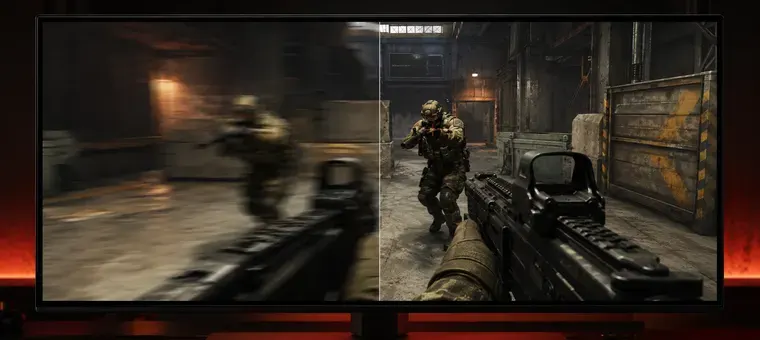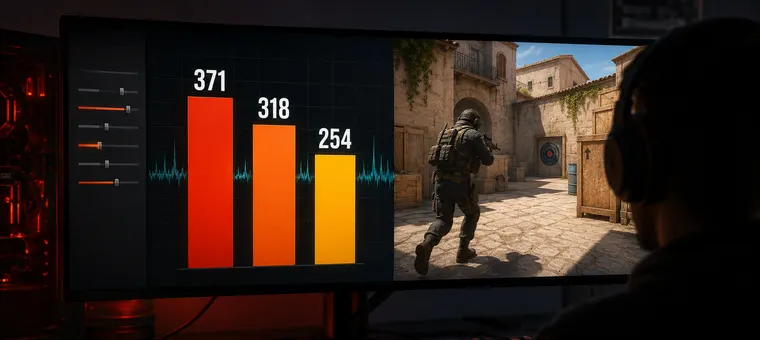

Polling rate is the one number on a mouse box that people argue about without agreeing what it measures. It is not DPI and it is not the refresh rate of your screen, though it gets confused with both. It is how many times per second the mouse tells the computer where it is.
This is what the number means, what the standard settings translate to in milliseconds, why an 8000 Hz mouse can read as 144 Hz in a browser, and what a higher rate does and does not change — with the caveat Razer, which sells 8000 Hz mice, prints itself. Sources were read on 15 September 2026 and rechecked on 16 October 2026; where a claim is somebody else's, we say whose.
What Polling Rate Is
Razer defines it in one sentence: “Polling rate is the frequency at which data is communicated from your device to your PC.” A mouse at 1000 Hz sends a report a thousand times a second; each report carries the movement since the last one. The computer does not ask in between. Whatever you do with the mouse in the gap between two reports arrives with the next one.
That makes the interval between reports the real unit. Divide 1000 milliseconds by the rate and you have it:
- 125 Hz — a report every 8 ms. The bottom of the ladder.
- 250 Hz — every 4 ms.
- 500 Hz — every 2 ms.
- 1000 Hz — every 1 ms.
- 2000 Hz and 4000 Hz — every 0.5 ms and 0.25 ms.
- 8000 Hz — every 0.125 ms. The top of the ladder, and the rate Razer's HyperPolling page describes.
Two things follow from the arithmetic. The step from 125 Hz to 1000 Hz cuts the wait between reports by 7 ms; the step from 1000 Hz to 8000 Hz cuts it by 0.875 ms. And the rate is a ceiling, not a promise: a mouse that is not moving sends nothing.
Polling Rate Is Not Refresh Rate
A 144 Hz monitor draws 144 frames a second. A 1000 Hz mouse reports a thousand times a second. The two numbers share a unit and nothing else: between two frames on a 144 Hz screen, a 1000 Hz mouse has sent about seven reports.
The confusion is understandable, because the browser can fold the two together. A web page listening for mouse movement does not receive every report. MDN's documentation for the pointer event API explains why:
“Instead of a stream of many pointermove events, user agents coalesce multiple updates into a single event. This helps with performance as the user agent has less event handling to perform, but there is a reduction in the granularity and accuracy when tracking, especially with fast and large movements.”
In Chrome the page gets one movement event per screen frame, with the reports in between folded into it; Chrome's developer blog describes this frame alignment of pointermove and mousemove from version 60. Time the gaps between those events and you get the refresh rate of the monitor — 144, 165, 240 — not the rate of the mouse. A checker that does not unfold the events is measuring the screen and calling it the mouse.
The API to unfold them is getCoalescedEvents(), which returns the reports the browser merged into each event. MDN's compatibility data lists it in Chrome from version 58, Firefox from 59 and Safari from 18.2; we have not tested Safari ourselves. Without it, a page sees only the events the browser dispatches; in a browser that aligns pointermove to the frame, as Chrome does, that is at most one per frame, so the highest rate it can report is your refresh rate. (MDN also lists a separate pointerrawupdate event, which the browser dispatches as soon as it can instead of delaying it like pointermove; our test does not use it.)
Does a Higher Polling Rate Make You Aim Better?
We have not measured that, and we are not going to claim it. What we can say is what a higher rate changes and what it costs, using the numbers of the company that sells it.
Razer's own page puts the gain from 1000 Hz to 8000 Hz as “a huge input delay reduction from 1 to 0.125 ms” — the maximum wait between a movement and the report that carries it, shrinking by under a millisecond. Eight times as many reports means eight times as many for the computer to process, and the same page carries the line most marketing leaves out:
“In some instances, your PC may not be powerful enough to support Razer HyperPolling. For CPU-bound cases, the computer might lack the resources needed to process 8,000 reports a second.”
The same page asks for the mouse to be on a native USB port, not a hub, and for the wireless dongle to be within 30 cm and in line of sight. Razer lists those as the conditions for HyperPolling; it does not say what rate the mouse holds outside them.
So the honest summary is this. Going from 125 Hz to 1000 Hz removes 7 ms of wait, on the order of a frame at 144 Hz. Going from 1000 Hz to 8000 Hz removes under 1 ms and costs CPU time; Razer itself warns that some PCs cannot process 8,000 reports a second. Whether that last millisecond is felt depends on the game, the screen and the hand — and anybody who gives you a number for how much it improves your aim has measured something we have not seen.
Why a 1000 Hz Mouse Reads 500 Hz
The setting in the mouse software is what the mouse is asked to do. What it actually holds is another matter, and a measurement below the setting can have one of a few causes:
- Wireless. Run the test once on the cable and once wireless; if only the wireless median is lower, the cause is on the wireless side.
- The path to the PC. A hub, a monitor's USB port or an extension cable sits between the mouse and the PC; Razer asks for a native port for 8000 Hz.
- The mouse standing still. No motion, no reports. A checker that counts the pauses as slow polls will report a rate that is too low; one that drops them will not.
- The browser folding reports — the case above. If the result equals your refresh rate to the digit, it is the screen.
Where the Setting Lives
If your mouse lets you change the rate, look in the maker's software. Some wireless mice need a separate dongle for 8000 Hz; Razer sells one as the HyperPolling Wireless Dongle.
Polling rate is one of three numbers behind how the mouse feels in CS2; the other two, DPI and in-game sensitivity, combine into eDPI, which our eDPI calculator works out.
Measure Your Own, and Read Three Numbers
Our Mouse Polling Rate Test runs for five seconds in the browser: click the pad, keep the mouse moving in circles at a normal speed, and it timestamps every report it receives. Gaps longer than 100 ms are treated as your hand stopping and dropped, not counted as slow polls, and the run needs at least 200 usable intervals before it will say anything — a mouse that sat still for most of the five seconds is reported as too short a run, not as a low rate.
The result is three numbers rather than one, because one number hides the tail:
- Median — the rate the mouse held for most of the run, snapped to the nearest standard setting so you can compare it with the setting in your mouse software.
- Fastest 5 % — the fastest 5 % of the gaps, as a rate. It shows the spread next to the median; we have not measured what a large gap between the two means.
- Jitter — how far the gaps wander from the median, in milliseconds. A 1000 Hz mouse reports every 1 ms; the lower this number, the more evenly those reports arrived. We have not set a threshold for what counts as good; the useful comparison is your own, so run it on the cable and on wireless and compare the two.
Before you start, the page reads whether your browser exposes the folded reports. If it does, the test can see rates above your refresh rate. If it does not, the test still runs and the result is marked in amber with the sentence that matters: this is your screen, not your mouse. Nothing is sent anywhere; the timestamps stay in the tab and are gone when you close it.