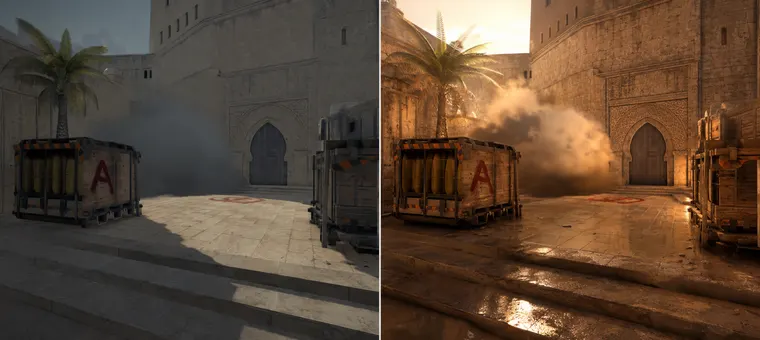

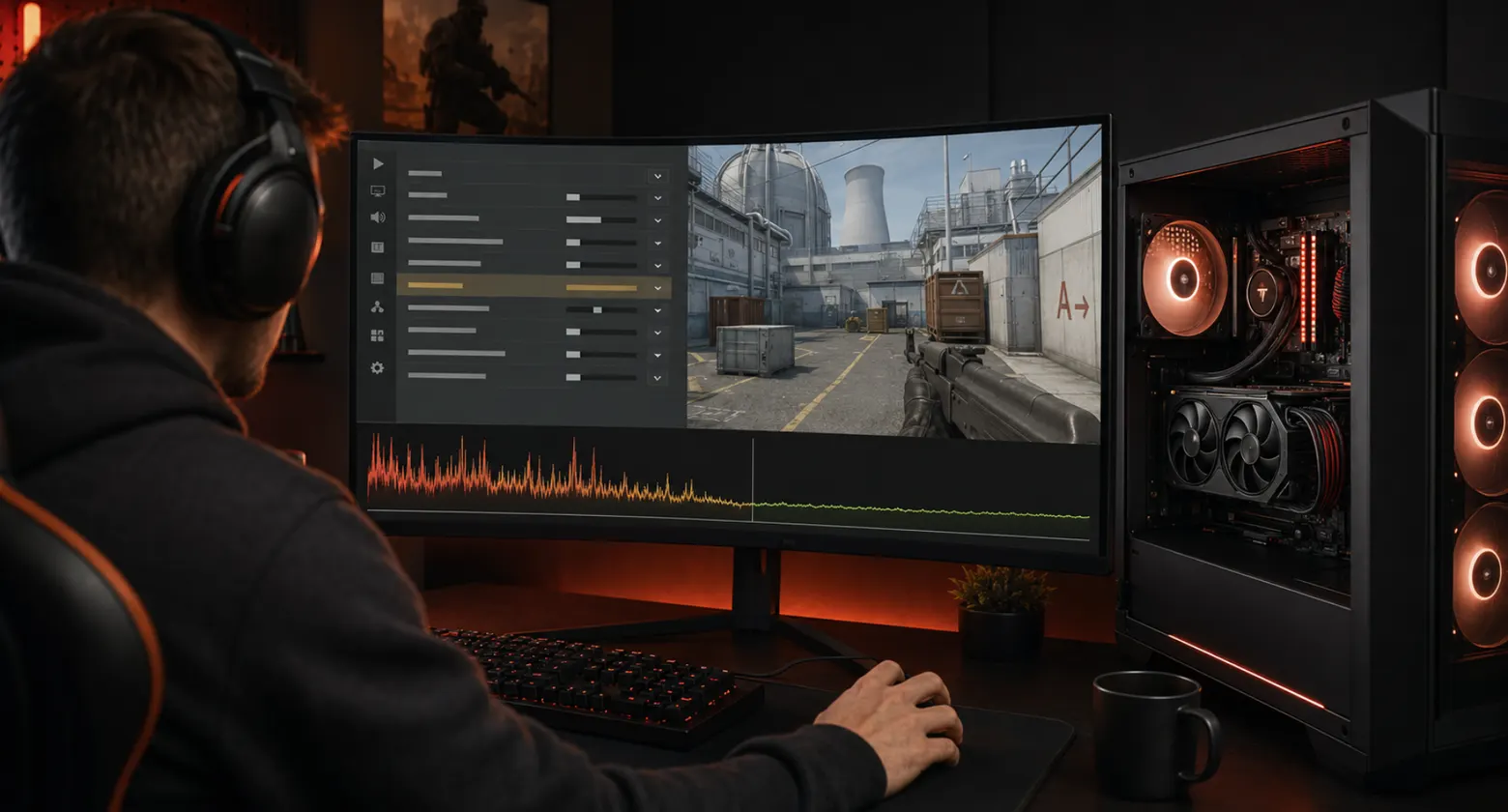
Stable FPS matters more in Counter-Strike than in almost any other game. It's not the average number that kills you. It's the dip. You hold an angle at 250 FPS, two smokes bloom and a Molotov lands, and suddenly you're at 90 with visible stutter on a 144Hz monitor. That half-second is where you lose the duel. CS2's Source 2 engine fixed a lot of what made CS:GO choppy, but it also brought its own problems: volumetric smokes and dynamic lighting are genuinely heavy, and plenty of PCs that ran CS:GO at 300 FPS struggle to hold 144 in CS2.
This guide covers everything that still actually works in 2026: video settings, launch options (most of the old CS:GO ones are dead. We'll tell you which survived), NVIDIA Control Panel and a few config commands. No placebo tweaks.
Why Does CS2 Drop FPS?
Three usual suspects. First, the smokes. They're real volumes now, recalculated when bullets and grenades pass through them, and that costs CPU and GPU at the same time. Second, CS2 leans much harder on the CPU than CS:GO did, so an aging processor bottlenecks you even with a decent graphics card. Third, background load: browser tabs, Discord overlays and recording software eat into exactly the CPU headroom the game needs during fights. If your FPS is fine in warmup but tanks mid-round, it's almost always one of these three.
Best CS2 Video Settings for High FPS
Resolution is still the biggest single lever. Dropping from 1920×1080 to 1280×960 stretched (4:3) can nearly double your framerate, and a large share of pros play stretched anyway. Bigger character models are a side bonus. If stretched isn't for you, 1600×900 is a reasonable middle ground. Try both for a few deathmatches before deciding; comfort beats theory here.
In the video settings, the ones that actually move the needle:
- Shader Detail. Low. Big FPS gain, minor visual loss.
- Particle Detail. Low. Directly reduces the FPS hit from smokes and Molotovs.
- Multisampling Anti-Aliasing. 2x MSAA(or off on weak PCs). At low resolutions keep at least 2x so enemies don't dissolve into pixels at range.
- Model / Texture Detail. Medium. Low can make player models look muddy against some backgrounds; Medium is cheap.
- Boost Player Contrast. Enabled. Nearly free and helps visibility.
- V-Sync. Disabled. Always. It adds input lag.
- NVIDIA Reflex. Enabled. Doesn't add FPS, but cuts system latency. There's no reason to turn it off.
CS2 Launch Options and FPS
Here's where old guides will steer you wrong. Two of the famous CS:GO launch options, +cl_forcepreload and +mat_queue_mode, name console variables that are not in CS2's variable list at all (build 2000918, 25 September 2026), so they set nothing. -threads has no CS2 documentation we have found, and nobody has shown it doing anything there. -nojoy, often listed with them, is still read; it only skips controller set-up. What's still worth setting (right-click CS2 in your Steam library → Properties → Launch Options):
-highasks Windows for high process priority. Unconfirmed on CS2: reports of stutter with it are as common as reports of help, so leave it out unless you have measured a gain on your own machine.-novidskipped the intro video in CS:GO. We have found no CS2 documentation for it and no measured effect, so there is no reason to add it.+fps_max 0uncaps the framerate. Or cap it slightly above your refresh rate (e.g.+fps_max 400) if uncapped FPS makes your frametimes jittery.-fullscreenforces exclusive fullscreen, which usually has lower latency than windowed modes.
A full line looks like this:
-fullscreen +fps_max 400While you're in Properties, one more thing: disable the Steam Overlay for CS2 if you don't use it. It's less costly than it was in the CS:GO days, but on older rigs every bit of background load counts.
NVIDIA Control Panel Settings for CS2
Open NVIDIA Control Panel → Manage 3D Settings, add CS2 as a program and set:
- Power management mode → Prefer maximum performance. Stops the GPU downclocking between rounds.
- Low Latency Mode → On (Reflex in-game already covers Ultra).
- Texture filtering – Quality → High performance.
- Vertical sync → Off.
If you have a G-Sync or FreeSync monitor, you can leave adaptive sync on for other games, but for CS2 most competitive players run it off with uncapped FPS, trading a bit of tearing for the lowest possible latency.
CS2 Config Commands to Reduce FPS Drops
The giant CS:GO autoexec full of r_eyemove-style commands is gone. Source 2 removed nearly all of those cvars, and copying them into CS2 does nothing. The short list that still helps:
fps_max 400          // or 0 for uncapped
fps_max_ui 120       // caps menu FPS so the GPU rests between matches
r_show_build_info 0  // hides the build overlay
cl_hud_telemetry_frametime_show 0
Beyond that, the real "config" work in 2026 happens outside the game: close the browser, cap Discord's overlay, keep Windows Game Mode on, and make sure CS2 sits on an SSD. If you're CPU-bound, enabling XMP for your RAM in BIOS is the single most overlooked free upgrade. Counter-Strike loves fast memory.
CS2 FPS Boost FAQ
What is a good FPS for CS2?
Whatever keeps you above your refresh rate at the worst moment, not on average. On 144Hz aim for 200+, on 240Hz for 300+, so smokes and fights never pull you under the refresh rate.
Do CS:GO launch options still work in CS2?
Few of them are shown to. +cl_forcepreload and +mat_queue_mode name console variables CS2 no longer has, while -threads and -novid have no CS2 documentation we have found. Stick to an fps_max cap; -high is unconfirmed on CS2 either way.
Why does my FPS drop in smokes?
CS2's smokes are volumetric and react to gunfire, which is expensive to simulate. Lower Particle Detail and Shader Detail to soften the hit. Some drop is normal even on high-end PCs.
Is upgrading my CPU or GPU better for CS2 FPS?
At competitive settings CS2 is usually CPU-bound. If you play at low resolution with low details, a faster CPU (and faster RAM) will gain you more than a GPU upgrade. We break down full builds in our guide to building a PC for Counter-Strike.
Once your game runs smooth, the next bottleneck is usually the account itself. Matchmaking quality depends heavily on Trust Factor. That's what our Steam boosting services are built around, from CS2 commendations to profile trust signals. Running since 2013, with a person approving every start.